
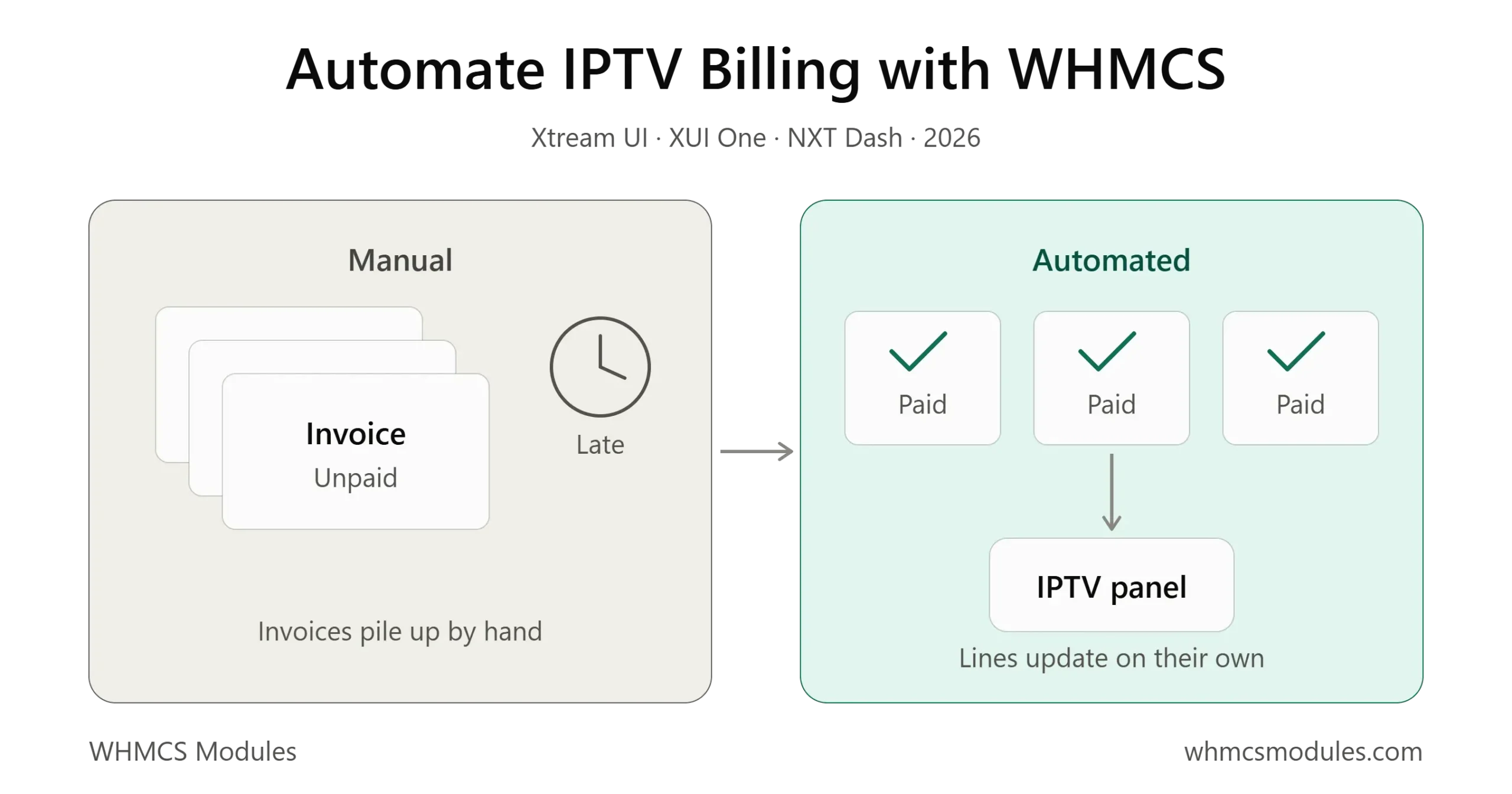
To automate IPTV billing with WHMCS, you connect your IPTV panel (such as Xtream UI, XUI One or NXT Dash) to WHMCS using a provisioning module. When a customer pays, the module talks to the panel and creates, renews or suspends the account for you. This guide explains how that works, how to set it up, and which mistakes to avoid.
What Is IPTV Billing Automation?
WHMCS handles orders, invoices, payments and support tickets. Your IPTV panel creates the actual streaming lines. WHMCS has no built-in link to IPTV panels, so a module acts as the bridge between the two.
Without that bridge, you copy customer details into the panel by hand. With it, the module can:
- Create a line after an order is paid
- Extend the expiry date when an invoice is paid
- Suspend lines when invoices become overdue
- Unsuspend them after payment
- Terminate cancelled services
- Work with reseller credits, where your panel uses them
Owner Panel vs Reseller Panel
Before choosing a module, know which side you are on.
Owner panel. You run the panel yourself. You have full control, but you also manage servers and updates.
Reseller panel. You buy credits from a provider and sell lines to customers. Setup is simpler, but each new line or renewal usually spends credits, so you must keep your balance topped up.
Modules are usually built for one side or the other, so check this first.
How to Set Up IPTV Automation in WHMCS
- Choose a module for your exact panel. Match the panel name and version, and check that it supports your WHMCS version.
- Install and activate it. Follow the vendor’s instructions to upload the files and add your license.
- Add your panel as a server in WHMCS. Enter the panel address and API details, then use any “test connection” option the module offers.
- Create a product. Select the module and map each WHMCS product to a panel package.
- Match billing cycles. A monthly WHMCS cycle should map to a one-month panel package, and a yearly cycle to a twelve-month one.
- Connect a payment gateway. Pick one that marks invoices paid automatically.
- Check your cron job. WHMCS runs renewals, reminders and suspensions through its daily cron.
- Test the full cycle. Place a test order, pay it, confirm the line is created, then test a renewal and a suspension.
Xtream UI, XUI One and NXT Dash: What Changes?
The steps are similar, but the details are not. Each panel has its own API fields, package setup and line types, such as M3U or MAG devices. In our opinion, the safest approach is a module made for your specific panel rather than a generic one.
You can browse the options for Xtream UI, XUI One and NXT Dash in the store.
Choosing Payment Gateways
Automation only works if payments are recorded correctly. If a gateway does not update the invoice status, the module never receives the signal to renew the service.
When comparing gateways, check these points:
- Does it update invoices automatically?
- Are fees and supported countries acceptable for your customers?
- Does it support the payment methods your customers actually use, such as cards, PayPal or crypto?
See our payment gateway modules for WHMCS for available options.
Common Mistakes and How to Fix Them
- Cron not running. Renewals and suspensions silently stop. Check the cron status in your WHMCS admin area regularly.
- Mismatched billing cycles. A customer pays for a month but receives a year, or the reverse. Test every cycle.
- Empty reseller credits. Provisioning fails when the balance runs out. Set a reminder to top up.
- Skipping tests. Always test with a trial or low-cost product before going live.
- No backups. Back up WHMCS and its database before installing modules or updating.
- Weak admin security. Use strong passwords and two-factor authentication on your WHMCS admin account.
A Simple Example
This is a hypothetical scenario, not a customer case. Imagine a reseller sells one-month and twelve-month plans. A customer orders the monthly plan and pays. The module creates the line and sends the login details. A month later, the invoice is paid again and the expiry date is extended. If the customer stops paying, WHMCS suspends the line after the grace period you set. The owner does none of this by hand.
Limitations to Keep in Mind
Automation reduces manual work, but it does not remove responsibility. You still need to keep software updated, monitor your panel, and make sure the content you sell is properly licensed. Module behavior also varies between vendors, so read the documentation before buying.
Conclusion
Automating IPTV billing comes down to three things: a module that matches your panel, correct product and billing cycle mapping, and a working cron job with a reliable payment gateway. Get these right and renewals, suspensions and new orders largely run themselves. If you are choosing modules for Xtream UI, XUI One or NXT Dash, you can compare options at WHMCS Modules and test everything on a trial product first.
Frequently Asked Questions (FAQs)
1. How to Automate IPTV Billing with WHMCS: Xtream UI, XUI One & NXT Dash Setup Guide (2026)
No. WHMCS handles billing and client management, but it has no native IPTV panel connection. You need a provisioning module built for your panel so orders and renewals can create and update lines automatically.
2. Can I connect more than one IPTV panel to one WHMCS?
Often yes, but it depends on the module. Many modules let you add several servers in WHMCS and assign products to each one. Check the module’s documentation before buying if you run multiple panels.
3. What happens if a customer does not pay on time?
WHMCS marks the invoice overdue and, once your grace period ends, its cron job triggers a suspension through the module. When the customer pays later, the module can unsuspend the line automatically.
4. Do I need coding skills to automate IPTV billing?
Not usually. Setup is done through the WHMCS admin area. You should be comfortable with basic server tasks, such as adding a cron job, and with entering API details correctly.
5. How do reseller credits work with automation?
On reseller panels, creating or renewing a line typically uses credits from your balance. Keep enough credits available, because provisioning can fail when the balance is empty. Some modules display your balance inside WHMCS.
Your content goes here. Edit or remove this text inline or in the module Content settings. You can also style every aspect of this content in the module Design settings and even apply custom CSS to this text in the module Advanced settings.

